iOS 27 Makes the Shortcuts App Much Less Intimidating
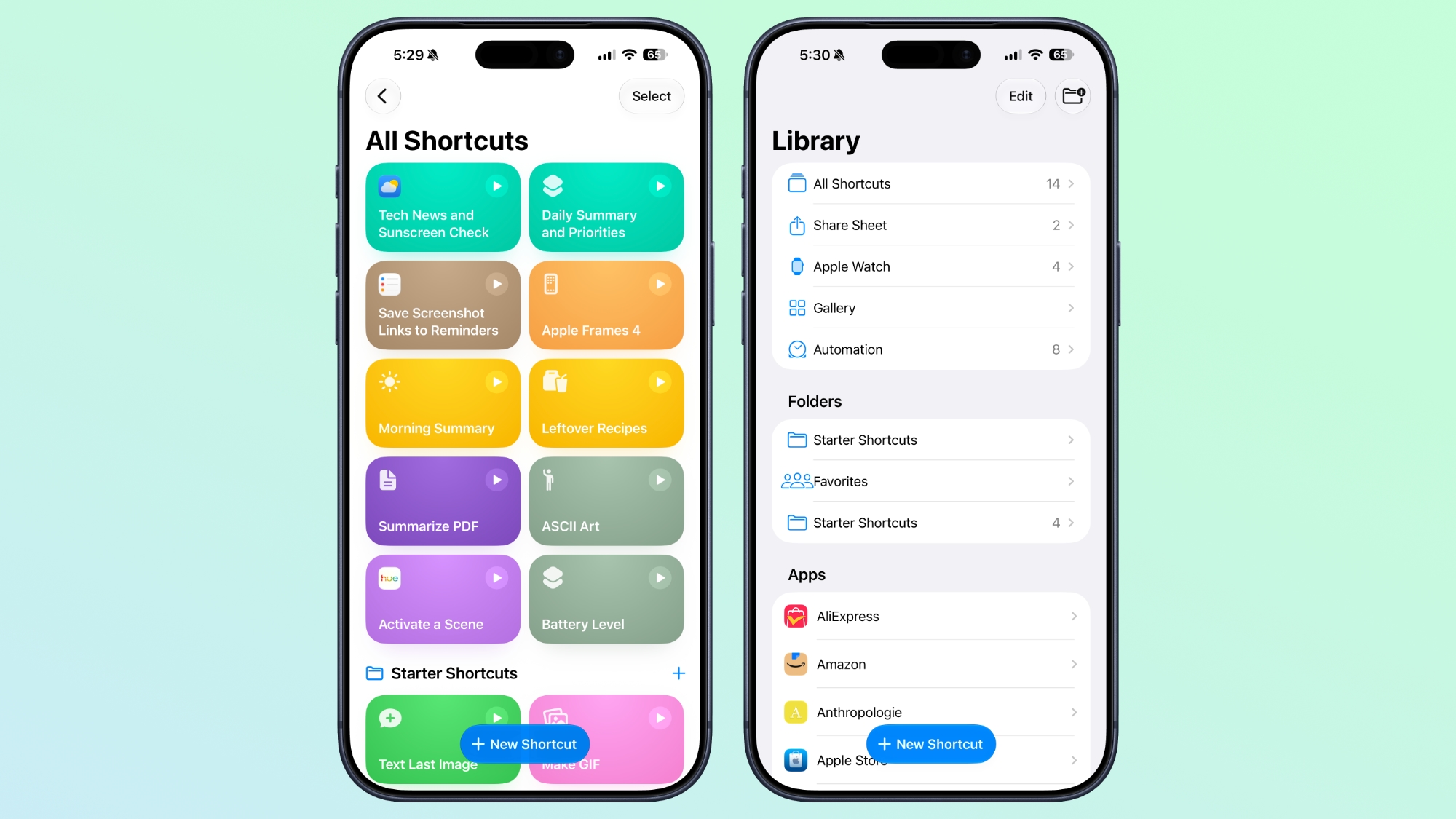
[[{“value”:”The Shortcuts app can be intimidating to casual iPhone users, but with iOS 27, it’s a lot easier to use. With Apple Intelligence integration, shortcuts can be created using natural language, and they’re much more accessible to the average person.
Describe a Shortcut
When you tap on the New Shortcut button in the iOS 27 Shortcuts app, it opens to the Describe a Shortcut interface.
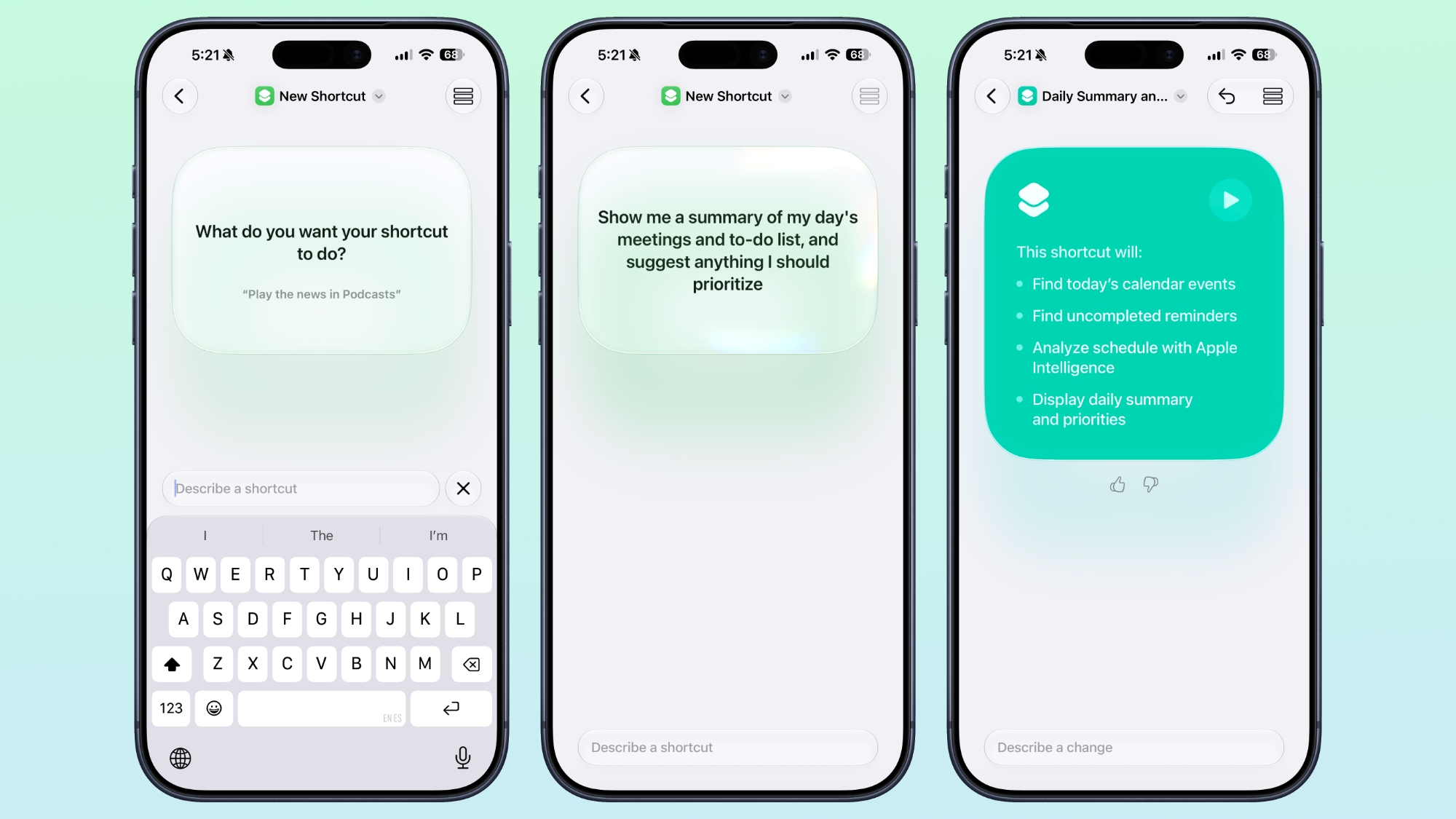
There’s a text box that asks you what you want your shortcut to do, and you can describe what you need in natural language. You can start with a single step, or add in multiple parameters. Apple Intelligence selects the correct actions, creates the automations, and folds it all into a completed shortcut. A few examples of what you can do:
- Each evening, set tomorrow’s alarm based on my first Calendar event, turn on Sleep Focus, and dim the bedroom lights.
- Every morning, show me my first meeting, today’s weather, and my Reminders due today.
- Turn on the porch lights at night when you get a notification that food delivery is arriving.
- Text my partner an ETA when I leave work, then start playing my podcast.
- Show me a summary of my day’s meetings and to-do list, and suggest anything I should prioritize.
- When I open YouTube, turn off orientation lock. Turn it back on when I close the app.
- Give me a three-line summary of today’s tech news.
Shortcuts and automations can run based on time of day, location, an app action, a system feature like a screenshot, an incoming notification, and more. Shortcuts can do all kinds of things, from accessing system features to opening and running apps.
Add Refinements
After dictating a shortcut, the app will outline each of the actions the shortcut will perform. If it’s what you want, you can tap on the play button to test it. It will be added automatically to your personal shortcuts.
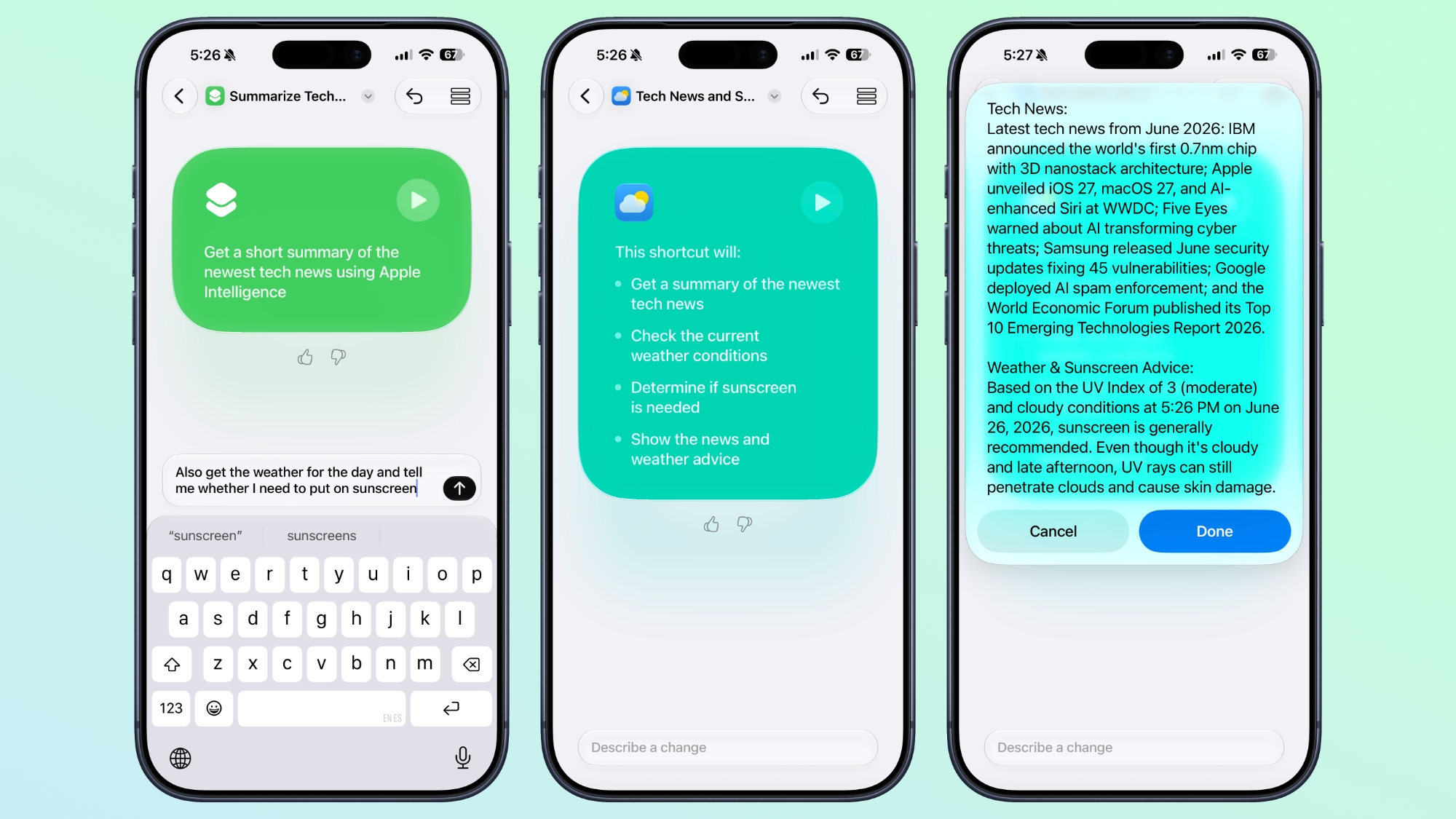
If it’s not quite what you want or you want to add more features, you can use the “Describe a change” interface. You can type in what you want to tweak, and go through multiple rounds of refinement until you get exactly what you want.
Shortcuts can be used from Siri, the app, Control Center, the Action Button, and more.
Edit Manually
Once created, you can tap into a manual editing interface if you want to add more complicated actions or tweak without using Apple Intelligence. AI Shortcuts is in beta and it’s not always perfect, so sometimes manual edits are required to get the end result you want.
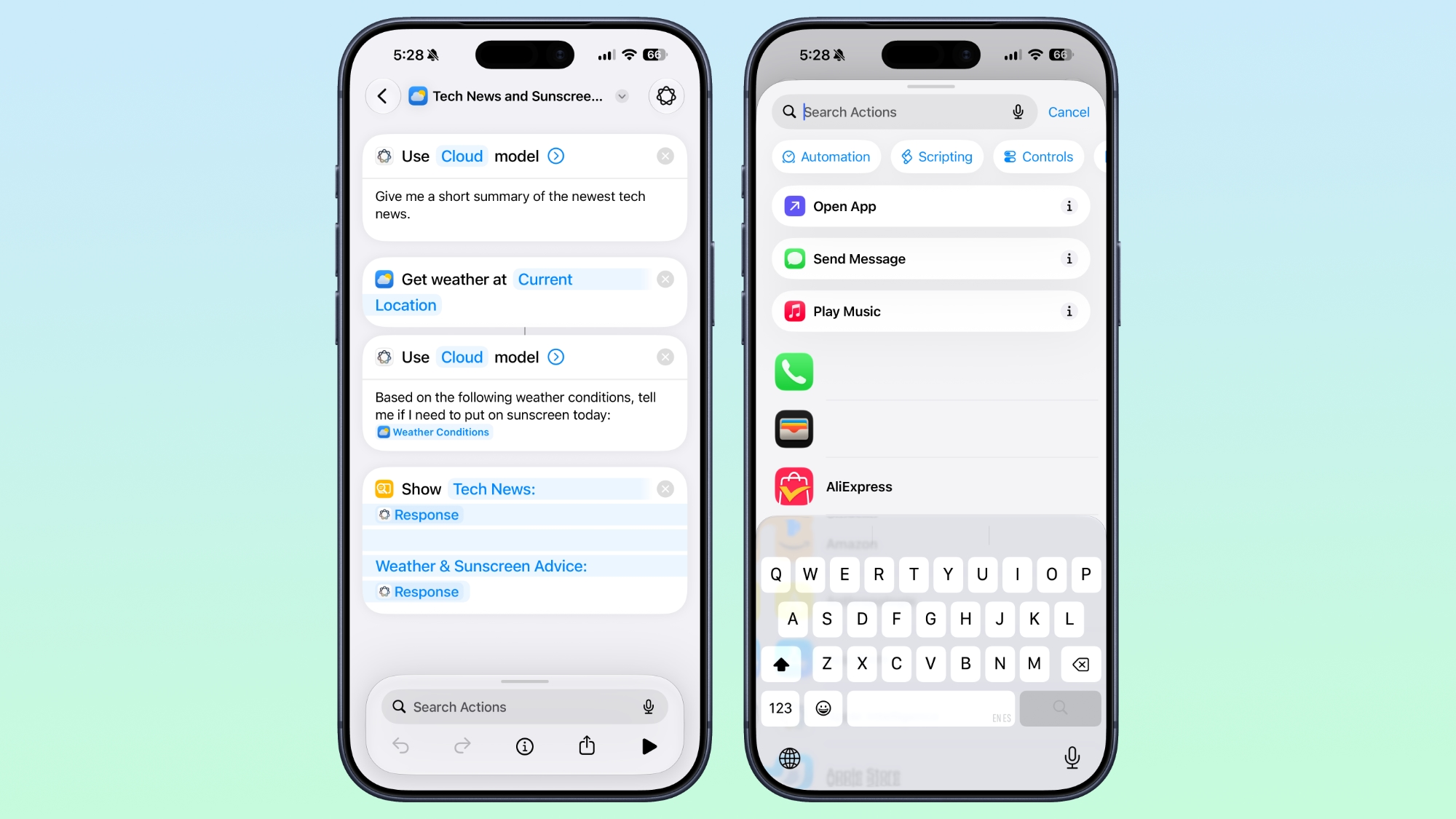
You can also open any shortcut and use the Apple Intelligence mode to make edits.
New Automation Triggers
- When a notification is received
- When a screenshot is captured
- When a keyboard is connected
- When an Apple Watch workout starts
New Actions
There are several new actions in the Shortcuts app.
- Automate a recording in Notes
- Send messages to a group conversation
- Updated Get What’s On Screen option that gets context information from the display (e.g. text, title, or links)
- Choose an item from a list
- Delete conversations or messages in Messages
- Mark as read in Messages
- Search in Messages
- Open Messages inbox
- Send Tapback
- Auto Enhance Photo
- Delete albums and photos
- Favorite photos
- Hide photos
- Open photo
- Create Group in Reminders
- Create Section in Reminders
- Delete groups, lists, and sections in Reminders
- Edit list in Reminders
- Toggle Hearing Aid Mute
- Toggle Vehicle Motion Cues
Improved Apple Intelligence Models
Shortcuts can use improved Apple Intelligence models that have access to broad world knowledge, which means the model can search the web to get information.
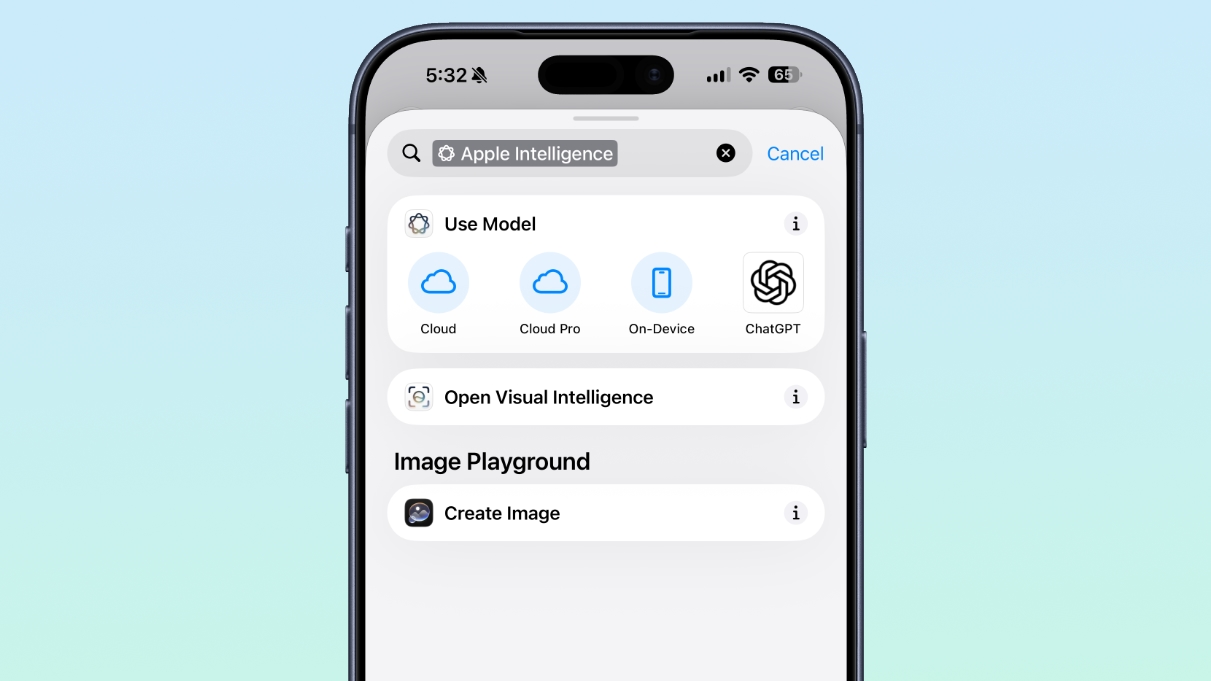
There are now Cloud, Cloud Pro, and on-device models that can be used in shortcuts. Cloud Pro is able to search the web, and is used for queries that need information from the internet.
Data Storage
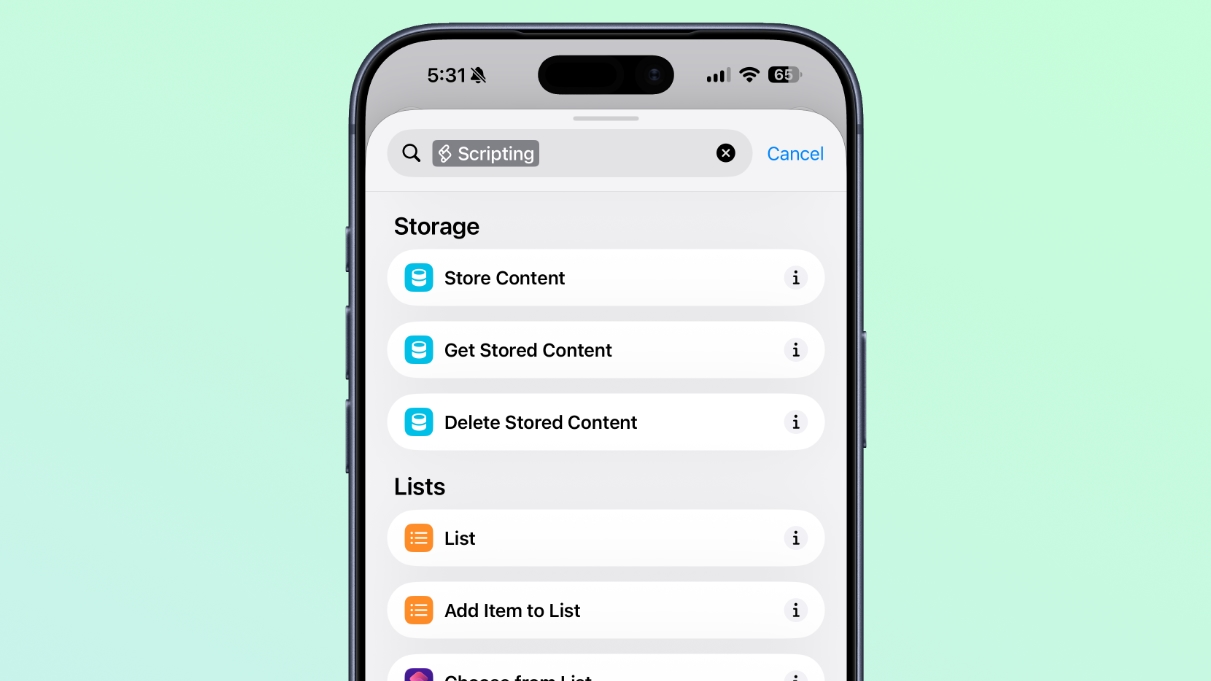
Shortcuts can store and update data, so you can do things like add items to a list or keep a tally.
Automation Updates
Automation is no longer a separate section in the Shortcuts app, and automation triggers are under the general Shortcuts actions.
Cross-Platform Support
The Describe a Shortcut feature is available in the Shortcuts app in iOS 27, iPadOS 27, and macOS Golden Gate.
Requirements
The Apple Intelligence Shortcut app features require a device that supports Apple Intelligence, which includes the iPhone 15 Pro and later, iPads with an M-series chip or the iPad mini with A17 Pro, or a Mac with an Apple silicon chip.
Supported languages include English, Danish, Dutch, French, German, Italian, Norwegian, Portuguese, Spanish, Swedish, Turkish, Vietnamese, Chinese (simplified and traditional), Japanese, and Korean.
This article, “iOS 27 Makes the Shortcuts App Much Less Intimidating” first appeared on MacRumors.com
Discuss this article in our forums
“}]]