Get your sleep back on track with the Sleep app on Apple Watch
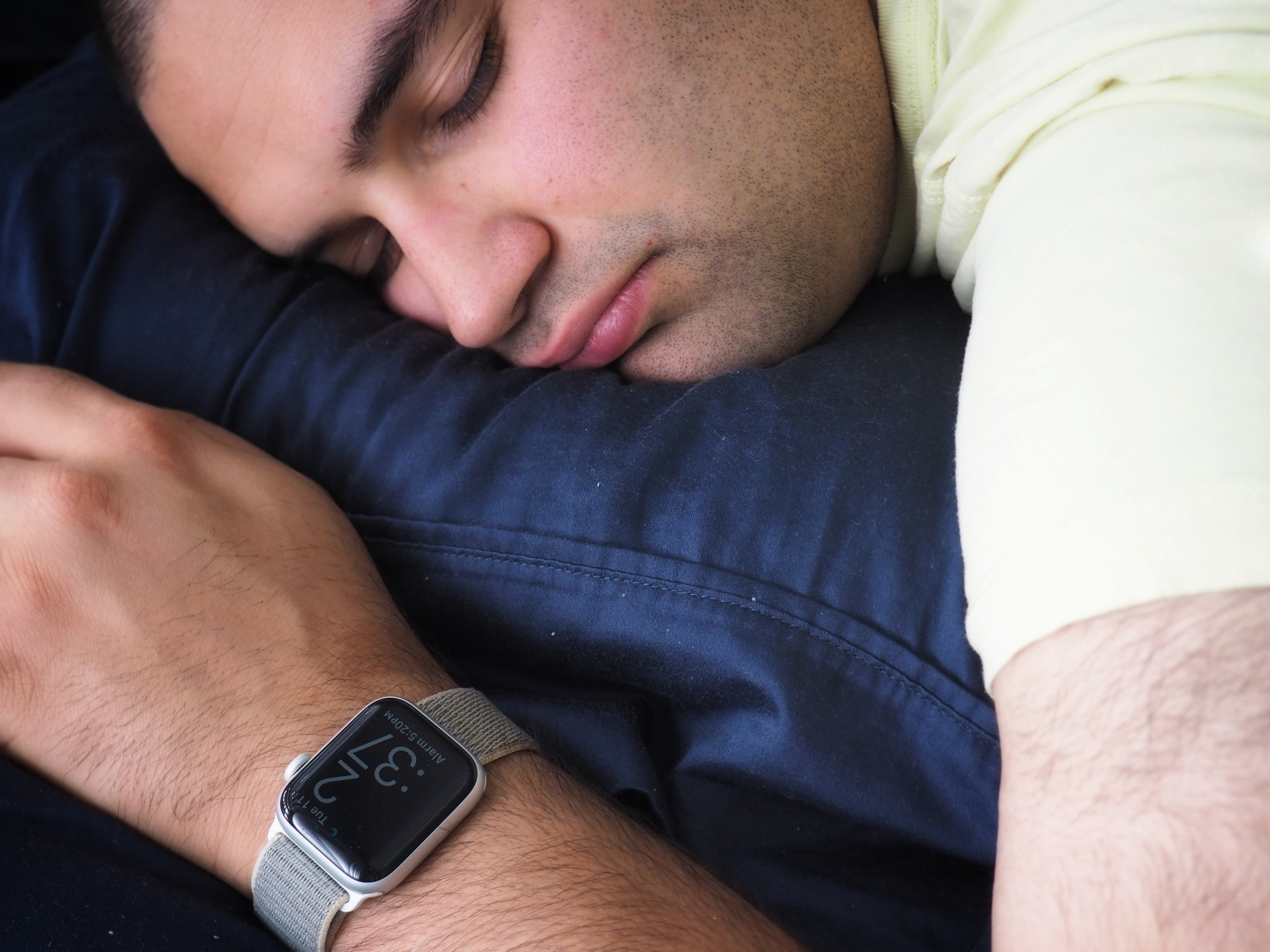
watchOS 7 can track your sleep through the new Sleep app. Here’s how to set it up!
Finally, Apple has included Sleep Tracking on the Apple Watch with the release of watchOS 7, meaning you can take your best Apple Watch to bed with you. It’s something we’ve all been clamoring for since sleep tracking started to be included on every fitness tracker — however, the new Sleep app on Apple Watch is much more than just tracking sleep. As mentioned in our watchOS 7 review, the Sleep app on Apple Watch aims to help you establish a more regular bedtime routine, and hopefully, that will help you get a better night’s sleep.
It all starts in the new Sleep app included in watchOS 7, and you’ll need to set up your first sleep schedule to get started. Here’s how to set up and use the Sleep app on Apple Watch
How to set up Sleep on your Apple Watch in watchOS 7
Before you head to bed with your best Apple Watch band strapped around your wrist, you’ll need to actually launch the Sleep app and set it up. The first time you launch the Sleep app, you will be prompted through a ton of different screens to set up your sleep schedule. You’ll need to set what time you want to wake up and go to bed, set if you want an alarm, and what sound that alarm will make, and you’ll need to set up if you want sleep tracking and Wind Down enabled. It sounds like a lot, but the process is pretty straightforward — here’s how you do it!
- Launch the Sleep app on your Apple Watch.
- Tap Next. You’ll need to scroll down to the bottom of the screen.
-
Adjust the time for your sleep goal by using the + and – buttons.

- Tap Next. You’ll need to scroll down to the bottom of the screen.
- Tap Every Day if you want to choose the days for your sleep schedule.
-
Tap the days you don’t want to be part of your sleep schedule.

- Tap the time to adjust the time you want to wake up.
- Tap the Alarm On/Off switch if you want an alarm.
-
Tap Sound to change the sound your alarm makes.

- Tap the bedtime time to adjust when you want to go to bed.
- Tap Next after reviewing your schedule.
-
Tap Enable to allow your Apple Watch to track motion while you sleep. You can tap skip if you don’t want this feature.

- Adjust the time for Wind Down using the + and – buttons.
-
Tap Enable to turn on the Wind Down feature. You can press Skip to turn it off.

- Tap Next.
-
Tap Done to finish setting up.

How to edit your sleep schedule on Apple Watch in watchOS 7
Once you’ve created a sleep schedule, you aren’t stuck with it. You can edit the sleep schedule at any time by following the steps below.
- Launch the Sleep app on your Apple Watch.
- Tap the sleep schedule you want to edit.
-
Tap the wake up time to adjust the time you want to wake up.

- Tap the Alarm On/Off switch if you want an alarm to toggle the alarm. When the switch is green, the alarm will be on.
- Tap Sounds & Haptics to change the sound your alarm makes.
-
Tap the sound you want.

- Tap Done.
- Tap the bedtime time to adjust what time you want to go to bed.
-
Tap back to return to the main Sleep menu.

You can use these steps to edit your sleep schedule whenever you want and as many times as you want.
How to turn off your sleep schedule on Apple Watch in watchOS 7
Sometimes you may not want to use the sleep schedule or sleep tracking abilities of the Apple Watch — like on vacation — so you’ll want to turn off your sleep schedule so it shuts the whole thing down.
- Launch the Sleep app on your Apple Watch.
- Tap Full Schedule.
-
Tap the Sleep Schedule On/Off switch. When the switch is gray, your sleep schedule will be disabled.

If you’ve turned off your sleep schedule for any reason, you can turn it back on with just a few clicks by following the same steps outlined above.
Any Questions?
Let us know in the comments down below.
Updated May 2021: Updated for the latest version of watchOS 7.
Permanent link · https://technorapper.com/2021/05/get-your-sleep-back-on-track-with-the-sleep-app-on-apple-watch/