How to use WhatsApp to make and receive UPI payments within chat window
<img src="” title=”How to use WhatsApp to make and receive UPI payments within chat window” />
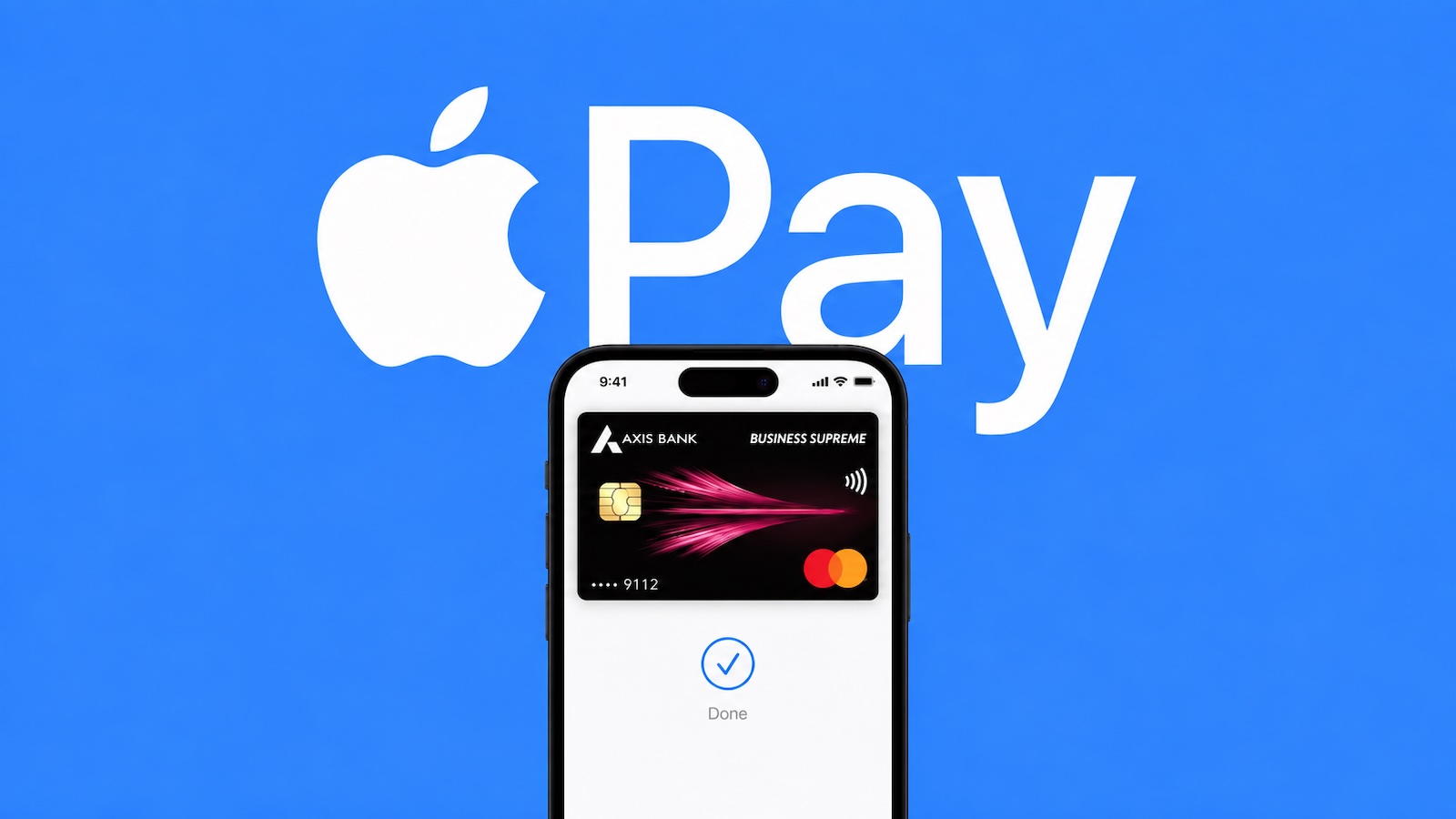
UPI has become a popular mode of payment in Digital India. There are many UPI service providers in the nation which also includes the biggest instant messaging application WhatsApp. WhatsApp has gone beyond just messaging and communication to offer UPI payment options. Using UPI you can easily shop from local kirana stores, both send and receive payments and more.
WhatsApp uses its messaging platform to make money transfers as easy as sending a message. You can transfer or receive money right from your chats. All you need to do is tap the ‘₹’ icon while chatting with a contact or scan a QR code across more than 20 million QR-code-enabled stores in India to initiate a UPI payment.
Here is how you can set up payments on WhatsApp in a few simple steps from the chat window:
Step 1: Add your bank account: To add your bank account you will need an active account at an Indian bank that supports UPI. The primary phone number associated with this bank account must match the phone number of your WhatsApp account.
-Open a chat with the person you want to send money to > tap the Payments icon. Alternatively, you can tap Attach > Payment.
-Enter the rupee amount you’d like to send > tap Next > tap Get Started.
-Tap Accept and Continue to accept our Payments Terms and Privacy Policy.
-From the list of banks, tap the name of your bank.
-Tap Verify via SMS > Allow. If WhatsApp already has permission to make and manage phone calls, you won’t need to grant permission.
-Tap the bank account you want to add to send and receive payments with WhatsApp.
-To verify your debit card, tap Continue
-Verify your debit card details > tap Verify Card.
Step 2: Send money: Once you’ve added your bank account to WhatsApp, you can send money to any contact.
Open a chat with the contact you want to send money to.
Tap the ‘₹’ symbol (Payments icon)
Enter the rupee amount you’d like to send > tap Next > Send Payment.
Step 3: Verify the payment by entering your UPI PIN: You will be asked to confirm your UPI PIN before sending a payment. If you haven’t set up a UPI PIN yet, you’ll be asked to do so by verifying the last 6 digits of your debit card and the expiration date.
Step 4: Confirm the status of your payment: To know whether your payment was successful, all you need to do is check the status of your transfer in the chat or view past transactions in the payments settings.
WhatsApp also offers stickers and backgrounds to personalise the payments experience on the platform. These stickers and backgrounds can be selected by tapping the ‘Sticker’ icon in the chat composer.
The post How to use WhatsApp to make and receive UPI payments within chat window appeared first on BGR India.
<img src="" title="How to use WhatsApp to make and receive UPI payments within chat window" />
UPI has become a popular mode of payment in Digital India. There are many UPI service providers in the nation which also includes the biggest instant messaging application WhatsApp. WhatsApp has gone beyond just messaging and communication to offer UPI payment options. Using UPI you can easily shop from local kirana stores, both send and receive payments and more.
WhatsApp uses its messaging platform to make money transfers as easy as sending a message. You can transfer or receive money right from your chats. All you need to do is tap the ‘₹’ icon while chatting with a contact or scan a QR code across more than 20 million QR-code-enabled stores in India to initiate a UPI payment.
Here is how you can set up payments on WhatsApp in a few simple steps from the chat window:
Step 1: Add your bank account: To add your bank account you will need an active account at an Indian bank that supports UPI. The primary phone number associated with this bank account must match the phone number of your WhatsApp account.
-Open a chat with the person you want to send money to > tap the Payments icon. Alternatively, you can tap Attach > Payment.
-Enter the rupee amount you’d like to send > tap Next > tap Get Started.
-Tap Accept and Continue to accept our Payments Terms and Privacy Policy.
-From the list of banks, tap the name of your bank.
-Tap Verify via SMS > Allow. If WhatsApp already has permission to make and manage phone calls, you won’t need to grant permission.
-Tap the bank account you want to add to send and receive payments with WhatsApp.
-To verify your debit card, tap Continue
-Verify your debit card details > tap Verify Card.
Step 2: Send money: Once you’ve added your bank account to WhatsApp, you can send money to any contact.
Open a chat with the contact you want to send money to.
Tap the ‘₹’ symbol (Payments icon)
Enter the rupee amount you’d like to send > tap Next > Send Payment.
Step 3: Verify the payment by entering your UPI PIN: You will be asked to confirm your UPI PIN before sending a payment. If you haven’t set up a UPI PIN yet, you’ll be asked to do so by verifying the last 6 digits of your debit card and the expiration date.
Step 4: Confirm the status of your payment: To know whether your payment was successful, all you need to do is check the status of your transfer in the chat or view past transactions in the payments settings.
WhatsApp also offers stickers and backgrounds to personalise the payments experience on the platform. These stickers and backgrounds can be selected by tapping the ‘Sticker’ icon in the chat composer.
The post How to use WhatsApp to make and receive UPI payments within chat window appeared first on BGR India.
<img src="” title=”How to use WhatsApp to make and receive UPI payments within chat window” />
UPI has become a popular mode of payment in Digital India. There are many UPI service providers in the nation which also includes the biggest instant messaging application WhatsApp. WhatsApp has gone beyond just messaging and communication to offer UPI payment options. Using UPI you can easily shop from local kirana stores, both send and receive payments and more.
WhatsApp uses its messaging platform to make money transfers as easy as sending a message. You can transfer or receive money right from your chats. All you need to do is tap the ‘₹’ icon while chatting with a contact or scan a QR code across more than 20 million QR-code-enabled stores in India to initiate a UPI payment.
Here is how you can set up payments on WhatsApp in a few simple steps from the chat window:
Step 1: Add your bank account: To add your bank account you will need an active account at an Indian bank that supports UPI. The primary phone number associated with this bank account must match the phone number of your WhatsApp account.
-Open a chat with the person you want to send money to > tap the Payments icon. Alternatively, you can tap Attach > Payment.
-Enter the rupee amount you’d like to send > tap Next > tap Get Started.
-Tap Accept and Continue to accept our Payments Terms and Privacy Policy.
-From the list of banks, tap the name of your bank.
-Tap Verify via SMS > Allow. If WhatsApp already has permission to make and manage phone calls, you won’t need to grant permission.
-Tap the bank account you want to add to send and receive payments with WhatsApp.
-To verify your debit card, tap Continue
-Verify your debit card details > tap Verify Card.
Step 2: Send money: Once you’ve added your bank account to WhatsApp, you can send money to any contact.
Open a chat with the contact you want to send money to.
Tap the ‘₹’ symbol (Payments icon)
Enter the rupee amount you’d like to send > tap Next > Send Payment.
Step 3: Verify the payment by entering your UPI PIN: You will be asked to confirm your UPI PIN before sending a payment. If you haven’t set up a UPI PIN yet, you’ll be asked to do so by verifying the last 6 digits of your debit card and the expiration date.
Step 4: Confirm the status of your payment: To know whether your payment was successful, all you need to do is check the status of your transfer in the chat or view past transactions in the payments settings.
WhatsApp also offers stickers and backgrounds to personalise the payments experience on the platform. These stickers and backgrounds can be selected by tapping the ‘Sticker’ icon in the chat composer.
The post How to use WhatsApp to make and receive UPI payments within chat window appeared first on BGR India.