How to sound better on video calls with this hidden iPhone trick
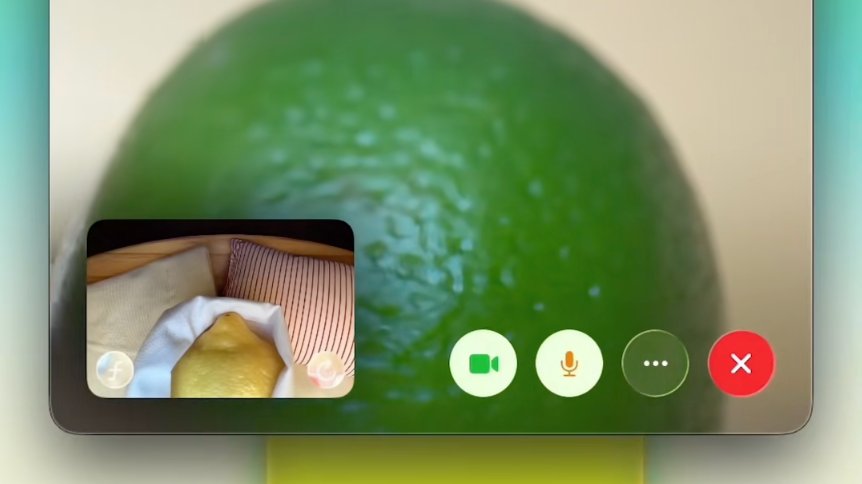
Apple announced a host of features when it released iOS 15 in September 2021, including several improvements to its video calling app, FaceTime. Along with finally extending FaceTime to Android and PC users through FaceTime Links, Apple also announced a feature called SharePlay and introduced its Spatial Audio tech to the app.
That wasn’t it though. The iOS 15 update also brought Voice Isolation and Wide Spectrum to FaceTime, with the former making you sound significantly better when on video calls.
Voice Isolation is a machine learning feature that blocks ambient noise and prioritises your voice so it sounds super crisp and clear. Wide Spectrum meanwhile, boosts ambient noise. It’s possible to switch between them, but the setting isn’t that easy to find and that’s where we come in.
Here’s how to turn on Voice Isolation to make your voice sound better on video calls, whether using FaceTime, Zoom, Facebook Messenger or another third party app like Teams.
How to turn on Voice Isolation on iPhone to make your voice clearer on video calls
Voice Isolation isn’t the easiest setting to find. Unlike most tricks on iPhone or iPad where you change something in Settings, Voice Isolation is a little more hidden. Here’s how to find the Voice Isolation setting and how to turn it on.
Open the FaceTime app on your iPhoneSwipe down from the top right of your iPhone if a Face ID model, or swipe up from the bottom of the iPhone SE (2022) to launch the Control CentreThere’s a tile called “Mic Mode” in the top right Tap on that tile and select “Voice Isolation”
Voice Isolation will be on by default for the next video call you make, whether through FaceTime, Facebook Messenger, Zoom, Microsoft Teams or Google Duo.
How to turn on Wide Spectrum on iPhone to boost background noise
If you want to do the opposite of making your voice sound better and actually you want the ambient noise in the background of wherever you are to be the focus, you can turn on Wide Spectrum. Follow the steps below to do that:
Open the FaceTime app on your iPhoneSwipe down from the top right of your iPhone if a Face ID model, or swipe up from the bottom of iPhone SE models to launch the Control CentreThere’s a tile called “Mic Mode” in the top right Tap on that tile and select “Wide Spectrum”
What do I need for Voice Isolation and Wide Spectrum?
The Voice Isolation and Wide Spectrum features require devices to be running iOS 15 or later, iPadOS 15 or later and macOS 12 Monterey or later.
The features also need an A12 Bionic chip or newer. That means you’ll need to have one of the following devices to access the Voice Isolation and Wide Spectrum features:
iPhone 13 Pro MaxiPhone 13 ProiPhone 13 iPhone 13 miniiPhone 12 Pro MaxiPhone 12 ProiPhone 12iPhone 12 miniiPhone 11iPhone XRiPhone XS MaxiPhone XSiPhone SE (2020)iPhone SE (2022)iPad Pro (fifth gen or newer)iPad Air (third gen or newer)iPad (eigth gen or newer)MacBooks (2018 and newer)